Messaging between practice consulting rooms and the front desk is something that can improve the efficiency of your team, and help prevent patients slipping through the cracks in their care.
In our practice software, iconpractice, users often ask whether we can implement a chat service for team members to message each other. The short answer is that there are excellent free tools that already do this really well. In this article I’ll highlight the one we use, which you can set up in your office for free. But first — what are messaging services?
Messaging or Chat Services
Most people will be familiar with Facebook Messenger or Skype, both of which let you send messages to individual users or groups. In many ways it’s just like SMS on a mobile phone. Using existing software you can implement a similar service in your office.
Why use it?
If you want to send a message to your front desk from your consulting room, your options without messaging are limited:
- Pass a note with the patient
- Get up and walk out there
- Call them if you have an internal phone system
- Email them
- Shout
Messaging is faster and less disruptive than all of these.
Enter Slack
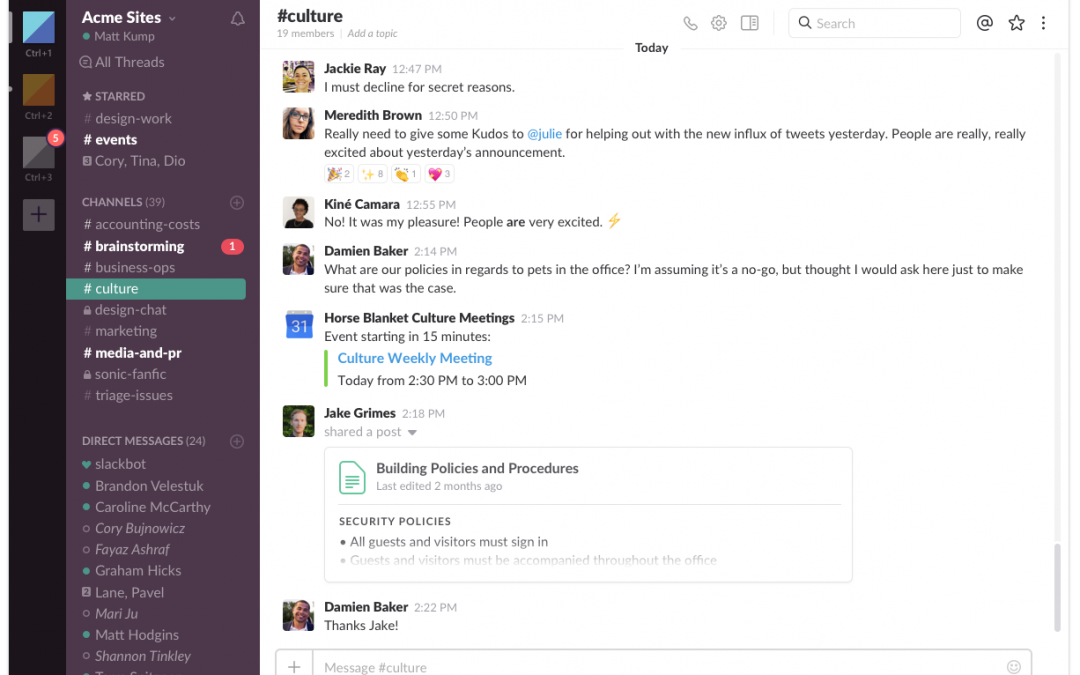
Slack is the most widely used team messaging service available today. You download the software to your computer or phone, create an account, and you’re ready to go.
How To Set It Up
Once you’ve downloaded and installed Slack, create a user account for each location you want to be able to message. If you have three consulting rooms, a reception desk, and an admin office, create a user for each location so messages can be routed effectively.
You could also set up a user for each team member if you want to message them when they’re offsite — useful if the practice owner sometimes works from home.
Why create a user per room rather than per person? Each Slack app needs to be logged into one user. If different people use the same consulting room or front desk across the week, they’d have to log in and out constantly. A room-based user avoids that friction, and Slack’s free plan supports it without issue.
How To Use It
Slack organises messages into channels for different topics. Most of the time the default #general channel will be sufficient. If you have many practitioners, you might create a dedicated channel per practitioner.
So if I’m messaging the front desk in my #drmatt channel, I might type:
@front_desk please book Mrs Bloggs in for 3 weeks for a re-exam consultation
The @front_desk user gets a notification immediately and can reply when ready.
Other Uses
You can also create channels for your admin team. If someone at the front desk notices an issue with a patient’s account but doesn’t have time or authority to fix it, they can send a message to @admin_team in an #admin channel. When the admin team next opens Slack, all the notifications are there waiting — no sticky notes required.
Slack also lets you set reminders for yourself. You can ask it to notify you about a specific message after a set period of time. There are also integrations with many other apps if you need to go further.
Check it out at slack.com — the free plan is more than enough for most practices.